Text animation in After Effects is one of those things that looks straightforward until you’re knee-deep in a kinetic typography project and spending twenty minutes hand-keyframing individual character delays. The built-in text animator is capable but awkward, and for anything beyond basic fades or slides, you end up either writing expressions from scratch or reaching for a third-party tool.
The plugins below cover the full range of what motion designers actually need: character-level control without layer explosion, typewriter effects with real cursor behavior, auto-resizing text boxes, fast-cut kinetic layouts, and ready-made animated typefaces with unique motion DNA. Whether you’re building broadcast titles, social content, or a full kinetic typography sequence, at least a few of these belong in your text animation workflow.
Here are the 10 best text animation plugins for After Effects:
| Plugin | Best For | Pricing |
|---|---|---|
| TypeToon | Cartoon-style kinetic text | Freemium (pay-what-you-want) |
| TextExploder V3 | Splitting text into animatable parts | Freemium (pay-what-you-want) |
| TextBox 2 | Auto-resizing text backgrounds | Freemium (pay-what-you-want) |
| TypeMonkey | Fast kinetic typography layouts | Freemium (pay-what-you-want) |
| Type | Typewriter effects and number rigs | Freemium (pay-what-you-want) |
| TextDelay | Per-character delay with inherited easing | Paid ($19.95) |
| AM Typewrite Text | Typewriter animations with RTL support | Freemium (pay-what-you-want) |
| Text Split and Animate | Splitting text with camera moves | Paid ($24.99) |
| Text Force | Audio-synced fast-cut kinetic text | Paid ($89.99) |
| Captioneer | Animated caption generation from audio | Freemium (pay-what-you-want) |
1. TypeToon
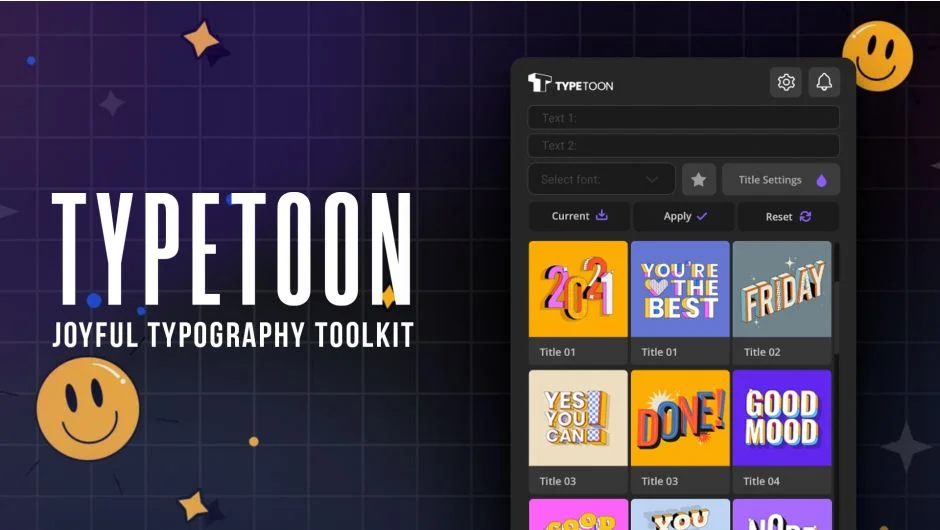
If your project needs text that moves with actual personality rather than a plain slide-and-fade, TypeToon is the fastest way to get there. It delivers 64 looping kinetic text animations built with a retro, faux-3D cartoon aesthetic, all without requiring you to touch 3D layers. The templates feel thick and energetic, making them a natural fit for social media graphics, gaming content, YouTube thumbnails, and anything that needs to pop against a busy background.
The practical appeal is that the loops are genuinely loopable, which matters when you’re building motion graphics that need to cycle without a visible seam. You drop the template, swap your text, adjust the color, and you’re done. There’s no deep expression rig to troubleshoot.
The limitation is the style itself: TypeToon lives in a specific visual lane. If your project calls for a refined editorial look or minimal sans-serif reveals, these presets will feel out of place. They’re built for bold, playful projects. For those use cases, though, TypeToon is hard to beat for the time it saves.
Compatibility: After Effects CS6 and later. Works on macOS and Windows.
Key features:
- 64 looping kinetic text templates
- Faux-3D look using 2D techniques, no 3D layers needed
- Loopable animations for continuous playback
- Retro cartoon aesthetic with bold, readable motion
- Pay-what-you-want pricing including free
Pros/Cons:
- Pros: Extremely fast setup, genuinely loopable animations, distinctive visual style that photographs well on social
- Cons: Style is narrow, won’t suit clean or corporate text animation briefs
Best for: Social media creators and gaming content designers who need energetic, cartoon-flavored text motion quickly
Pricing: Freemium (pay-what-you-want, including $0)
2. TextExploder V3
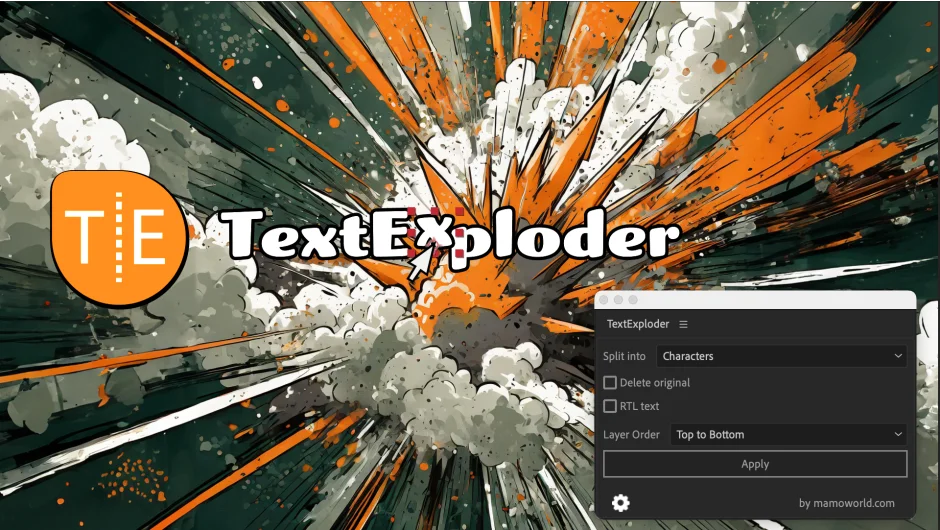
Anyone who has spent time splitting a text layer into individual characters by hand knows how tedious that process is: duplicate, set the source text to a single character, adjust the position, repeat. TextExploder V3 automates the whole thing. You select a text layer, choose whether to split by character, word, or line, and the script creates individual layers with correct positioning in a fraction of the time.
The reason this belongs on every motion designer’s machine is that it solves a foundational problem. Virtually every complex text animation, from individual character staggering to per-word morphing effects, requires this kind of layer decomposition first. TextExploder V3 handles the geometry accurately so layers land exactly where the original text sat, which saves the additional step of manually correcting positions.
The tool also preserves text styles, so you don’t lose your typeface, tracking, or leading settings during the split. TextExploder V3 is one of those utilities that pays for itself in the first project you use it.
One caveat: it creates layers, which means complex compositions can get crowded fast. Plan your structure before splitting.
Compatibility: After Effects CC and later.
Key features:
- Split text by character, word, or line
- Preserves positioning and text styling after split
- Single-click operation from a dockable panel
- Pay-what-you-want pricing
- Upgrade path from previous versions
Pros/Cons:
- Pros: Saves significant manual time, accurate positioning, style preservation, approachable price
- Cons: Can generate many layers in complex comps, no built-in animation presets after splitting
Best for: Any motion designer building per-character or per-word animations who wants to skip the manual splitting step
Pricing: Freemium (pay-what-you-want, suggested $19.99)
3. TextBox 2
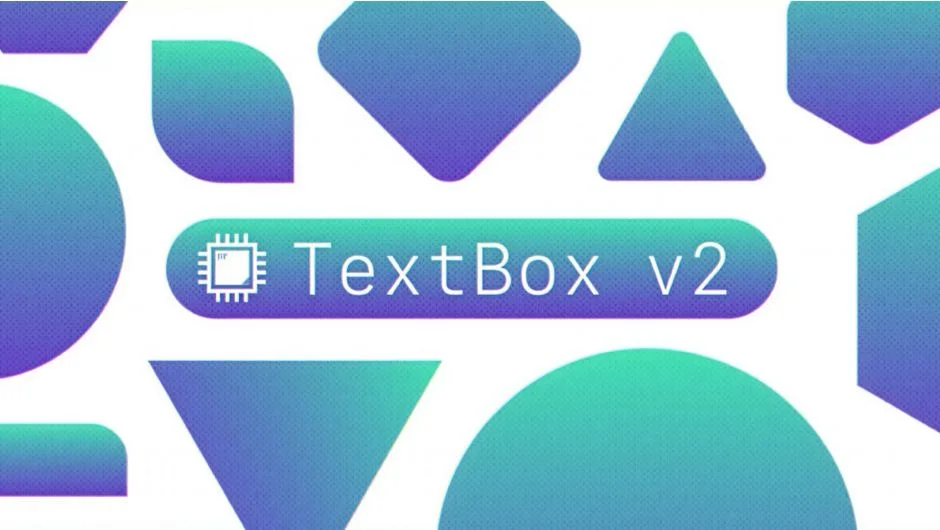
The problem TextBox 2 solves is one that every motion designer hits constantly: you build a lower third with a shape background behind the text, the client changes a word, and suddenly your carefully sized box is the wrong width. TextBox 2 attaches an auto-resizing shape directly to a text layer so the background updates instantly whenever the text changes, no manual adjustment required.
Beyond the basic auto-resize, it generates a range of shape types including rounded rectangles, squares, polygons, speech bubbles, and underlines. You can control padding, border thickness, gradient fills, corner roundness, and stroke behavior from a single effect panel. This makes it particularly useful for lower thirds, kinetic subtitle-style text, and UI mockup work where responsive layouts are non-negotiable.
The setup is quick: apply TextBox 2 to your text layer and adjust the shape settings in the effect controls. It adds no extra layers to your timeline, which keeps compositions cleaner than the manual approach.
The main limitation is that it’s a shape attached to a text layer, not a fully independent animated element. For complex entry and exit animations on the box itself, you’ll need to supplement with keyframes or other tools. For static or simply animated backgrounds, TextBox 2 is close to essential.
Compatibility: After Effects CC 2014 and later.
Key features:
- Auto-resizing background shapes tied to source text
- Multiple shape types: rounded rects, polygons, bubbles, underlines
- Padding, border, gradient, and corner controls
- Animatable shape properties
- No extra layers added to the timeline
Pros/Cons:
- Pros: Eliminates manual box resizing entirely, clean implementation, broad shape options
- Cons: Complex box animations require supplemental keyframing, limited to shapes that follow the text bounding box
Best for: Lower thirds and broadcast text work where the copy changes frequently and the background must always fit perfectly
Pricing: Freemium (pay-what-you-want, suggested $29.95)
4. TypeMonkey
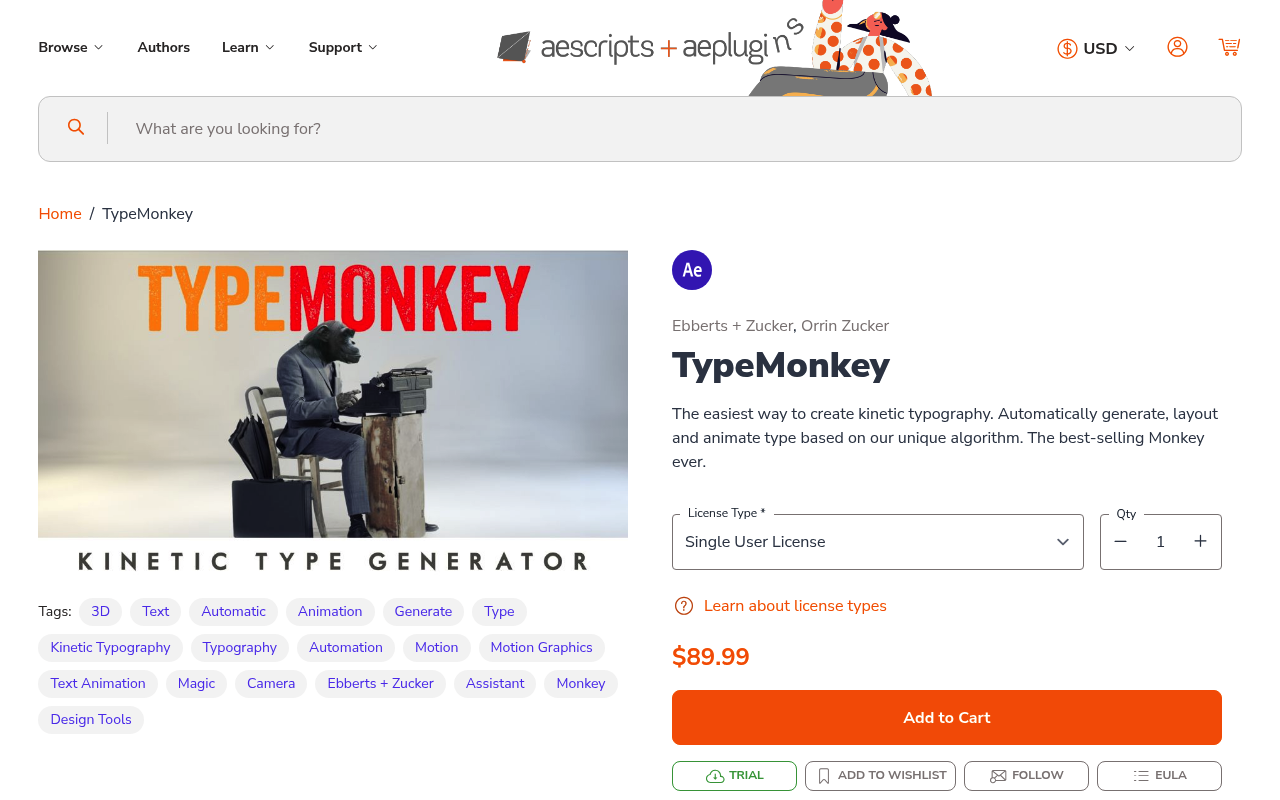
Kinetic typography sequences with lots of words and fast timing are genuinely time-consuming to build manually. TypeMonkey addresses this directly: you paste your text, set your timing with markers, and the script generates an animated kinetic typography layout. What would take hours of layer positioning and keyframing compresses into minutes.
The output isn’t just a single animation style applied uniformly. TypeMonkey randomizes position, scale, color, and motion within parameters you control, which produces layouts that feel designed rather than templated. You can feed it a voiceover script, set markers to sync with specific words, and get a rough cut of a full kinetic piece to refine from.
For a deep dive into the kinetic typography space, the kinetic typography plugins collection is worth browsing alongside this tool.
The workflow does require some setup investment to understand the marker-based timing system, and the output benefits from post-processing refinement rather than being finished on first pass. TypeMonkey also has companion tools like TypeMonkey3D for adding dimensional extrusion to the output, which extends the system significantly.
Compatibility: After Effects CS6 and later.
Key features:
- Marker-based timing for word-by-word animation control
- Randomized position, scale, and color variation
- Script-to-animation pipeline for full lyric or voiceover sequences
- Works with custom font sets and styles
- Freemium pricing with a trial available
Pros/Cons:
- Pros: Dramatically faster than manual kinetic typography builds, varied output that doesn’t look cookie-cutter, solid marker timing system
- Cons: Learning curve on the marker workflow, output typically needs refinement before delivery
Best for: Music video lyric videos and spoken-word kinetic typography projects where speed of rough-cut production matters
Pricing: Freemium (pay-what-you-want, trial available)
5. Type
Type is a consolidated toolkit that handles several common text animation needs that After Effects doesn’t address natively. The most-used features are the typewriter effect with a proper blinking cursor, text highlighting and underlining, strikethrough animations, and a number rig system that handles formatted counters and countdowns.
The reason it earns a spot on this list is specificity. The typewriter effect in particular is the kind of thing motion designers are frequently asked to build, and building it from scratch with expressions every time wastes meaningful hours. Type’s implementation includes cursor blink control, variable typing speed, and the ability to style the cursor independently from the text. The number formatting system handles currency symbols, decimal separators, and locale-specific display without requiring expression work.
Note that the standalone Blinky plugin, which previously handled cursor animations, has been absorbed into Type. If you were using Blinky, Type is the current replacement.
Type works well alongside TextBox 2 if you’re building animated callouts or annotated screen recordings where text appears and a responsive background needs to follow it.
Compatibility: After Effects CC and later, also works in Premiere Pro.
Key features:
- Auto-type animation with blinking cursor control
- Highlight, underline, and strikethrough text effects
- Number rig with formatting, counters, and countdowns
- Combined workflow panel for all features
- Pay-what-you-want pricing
Pros/Cons:
- Pros: Saves hours on typewriter and counter builds, cursor behavior is genuinely customizable, covers several common text requests in one tool
- Cons: Feature set is specific rather than broad, won’t help with kinetic or split character animations
Best for: UI animation, explainer videos, and any project requiring typewriter effects or animated number counters
Pricing: Freemium (pay-what-you-want, suggested $49)
6. TextDelay
After Effects’ native text animator can produce per-character delays, but the interface is counterintuitive and the easing behavior doesn’t inherit from your keyframes in a way that feels natural. TextDelay is a dedicated plugin that does exactly one thing well: delays text animations by character, word, or line while inheriting the easing from your existing keyframes automatically.
The practical workflow is straightforward. You animate your text layer as a whole, apply TextDelay, specify the delay amount and the unit (character, word, or line), and the plugin staggers the animation across those units while preserving the easing curves you’ve already set. This means your carefully tuned cubic or spring ease applies to each character rather than just the overall layer, which produces far more natural-feeling results than the AE text animator’s default behavior.
For motion designers who want to go deeper into expression-driven text control without a steep scripting curve, TextDelay pairs naturally with tools like TextExploder for more complex split-and-stagger workflows.
At $19.95, it’s one of the more affordable paid tools on this list. The limitation is that it requires a specific workflow: animate first, apply the delay second. It won’t animate text from scratch.
Compatibility: After Effects CC 2014 and later.
Key features:
- Per-character, per-word, or per-line delay control
- Inherits easing from existing keyframes automatically
- Simple effect controls, no expressions required
- Works with any text animation applied to the layer
- One-time purchase, no subscription
Pros/Cons:
- Pros: Easing inheritance is genuinely useful and hard to replicate manually, very fast to apply, clean output
- Cons: Works on existing animations only, not a standalone animator; limited to the single-delay-per-unit model
Best for: Motion designers who already have a text animation style they like and want to add character-level staggering without rebuilding in the text animator
Pricing: Paid ($19.95 single-user license)
7. AM Typewrite Text
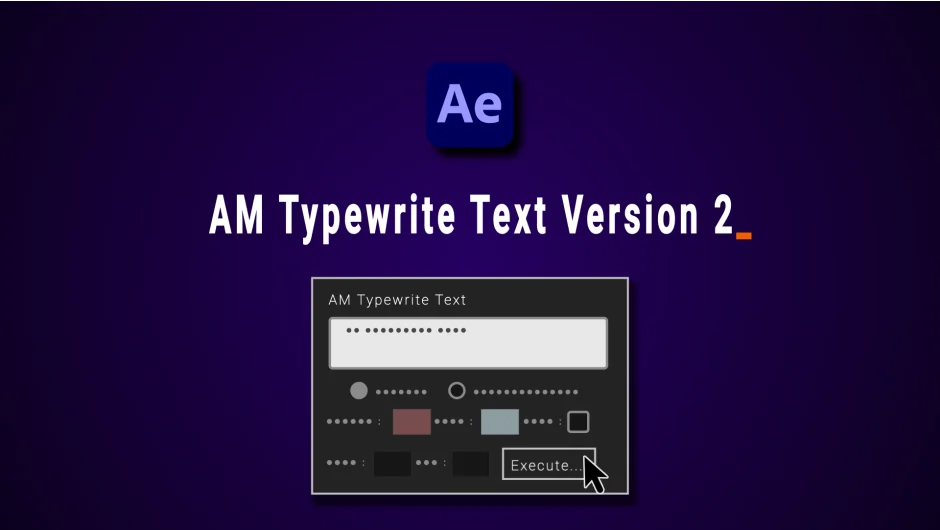
AM Typewrite Text focuses specifically on the typewriter animation use case and handles it with more control than most general-purpose solutions. The standout feature is RTL (right-to-left) language support, which makes it one of the few viable options for Arabic, Hebrew, or Farsi typewriter effects without custom expression work.
The cursor system is the strongest part of the plugin. You get multiple cursor styles, independent control over blink rate, and the ability to have the cursor disappear after typing completes. Speed variation across a sequence is also supported, so you can simulate a human typing rhythm rather than a robotic constant-speed output.
For projects that stay in English or Western European scripts, this competes directly with the Type plugin reviewed above. The tie-breaker is the RTL support: if you’re working in Arabic or Hebrew, AM Typewrite Text is the clearer choice. If you need that capability plus number counters and highlighting in the same package, Type covers more ground.
The pay-what-you-want model with a suggested minimum of $20 makes it very accessible.
Compatibility: After Effects CC and later.
Key features:
- Typewriter animation with customizable cursor styles
- RTL language support for Arabic, Hebrew, and Farsi
- Variable typing speed control
- Cursor blink rate and post-completion behavior settings
- Pay-what-you-want pricing
Pros/Cons:
- Pros: Best RTL typewriter support available, cursor customization is genuinely detailed, accessible pricing
- Cons: Narrower scope than multi-feature text tools, no number counter or highlighting features
Best for: Projects requiring typewriter animations in RTL languages, or LTR projects that need precise cursor control
Pricing: Freemium (pay-what-you-want, suggested minimum $20)
8. Text Split and Animate
Text Split and Animate combines the splitting step and the animation step into a single workflow. You write your text, run the script, and it splits the text into animated layers while applying camera movements and effects. The integration of camera work with the text splitting is what distinguishes it from a basic layer splitter.
The 3D camera move integration is particularly useful for motion designers working on title sequences or broadcast openers where the text needs to feel cinematic rather than flat. Rather than splitting your text and then manually setting up a camera rig to move through the resulting layers, Text Split and Animate handles the camera setup as part of the same operation.
For one-week trial access, the $24.99 price point is reasonable given the time it saves on setups that would otherwise require several manual steps across different parts of the AE interface.
The limitation is that the camera moves and preset effects are the tool’s primary selling point. If you only need basic splitting without camera integration, TextExploder V3 is a more focused solution at a lower suggested price. But for broadcast title work where dimensional camera movement is part of the brief, Text Split and Animate is worth the upgrade.
Compatibility: After Effects CS6 and later.
Key features:
- Combined text splitting and animation in a single step
- Integrated camera movement setup
- Preset effect library included
- Split by character, word, or line
- One-week trial available
Pros/Cons:
- Pros: Camera integration saves significant manual rig setup, combined workflow is faster than doing steps separately
- Cons: Overkill if you only need splitting without camera work, presets may require post-processing refinement
Best for: Broadcast title designers and motion designers who regularly need camera-driven text reveals
Pricing: Paid ($24.99 single-user license)
9. Text Force
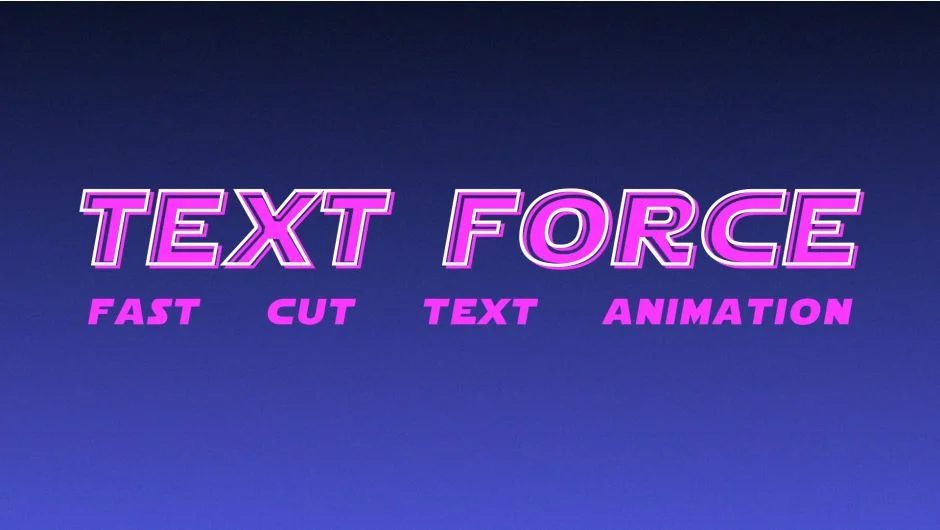
Text Force is built around a specific production scenario: you have a long voiceover or script, and you need to animate it as fast-cut kinetic text synced to the audio. The plugin ingests your text, breaks it into sentences, words, or segments split by punctuation, and synchronizes the animation cuts to an audio layer. Nine pre-built animation styles give you visual options without requiring custom keyframe work.
The audio syncing system is the part that justifies the premium price. Getting text to cut in time with speech manually means marking every word in and out, then animating each segment individually. Text Force reduces that to a significantly shorter pipeline. For explainer video production or lyric videos with a spoken component, this kind of automation has a direct impact on how many projects you can deliver per week.
At $89.99, it’s the most expensive tool on this list. It’s also the most purpose-built. If your practice includes regular fast-cut kinetic text work with audio sync, the price recovers quickly. If you occasionally need that style, you can get most of the way there with TypeMonkey at a lower suggested price.
Text Force also offers a 25% bundle discount when purchased alongside other tools. Check the aescripts product page for current bundle options.
Compatibility: After Effects CC and later.
Key features:
- Text splitting by punctuation, sentence, or word count
- Audio sync for timing cuts to speech or music
- 9 pre-built animation styles
- Handles long-form scripts with many text segments
- Bundle discount available
Pros/Cons:
- Pros: Genuinely fast for audio-synced kinetic text production, handles long scripts that would be impractical to build manually
- Cons: High price point for infrequent users, style customization beyond the 9 presets requires additional work
Best for: Studios and freelancers with regular explainer video or lyric video briefs that require audio-synced kinetic text at volume
Pricing: Paid ($89.99 single-user license)
10. Captioneer
Captioneer sits at the intersection of text animation and subtitling. It generates animated captions directly from audio using speech recognition, placing styled text layers on your timeline frame-accurately without manual transcription. For social media content, documentary work, or any video where word-for-word caption accuracy matters, this removes one of the most tedious steps in post-production.
Where Captioneer stands out from basic SRT importers is the animation styling. The captions aren’t static text: they animate with the presets built into the plugin, making them suitable for Instagram Reels, TikTok, and YouTube Shorts formats where plain subtitles underperform against animated caption styles. Templates are customizable, and the output is native After Effects layers, which means you can apply further effects or adjust timing after generation.
If you’re primarily working with pre-written subtitle files rather than audio transcription, the subtitle and caption plugins collection covers additional tools worth comparing. But for a full audio-to-animated-caption pipeline in one step, Captioneer covers significant ground.
The pay-what-you-want pricing is accessible, though a subscription model may apply for the full feature set based on current listing details.
Compatibility: After Effects CC and later, also works in Premiere Pro.
Key features:
- Speech-to-text transcription directly from audio layers
- Animated caption styling with preset templates
- Frame-accurate text layer generation
- Customizable templates for social media formats
- Works in both After Effects and Premiere Pro
Pros/Cons:
- Pros: Eliminates manual transcription and caption timing, animated output is social-media appropriate, dual app support
- Cons: Transcription accuracy depends on audio quality, pricing structure for full features requires checking current listing
Best for: Social video creators and documentary editors who need word-synced animated captions without spending time on manual subtitle work
Pricing: Freemium (pay-what-you-want, suggested minimum varies; subscription may apply for full features)
How we evaluated these plugins
Every plugin on this list was evaluated against criteria that reflect real production conditions rather than feature count. Compatibility with current After Effects versions (2022 and later on both macOS and Windows) was a baseline requirement. We assessed workflow fit, meaning how well each tool integrates into a working production pipeline without requiring a complete rethink of how you structure projects.
Pricing was weighted against the time savings each tool provides. A $90 plugin that saves three hours per project has a better return profile than a free tool that requires significant workaround time. Update frequency and developer responsiveness matter for tools that integrate tightly with AE’s expression engine, since Adobe updates regularly introduce compatibility issues. We also considered the breadth of the use cases each tool covers and whether the learning curve is proportionate to the output quality.
Tools that have been discontinued or are no longer receiving updates were excluded even if they remain technically functional, as compatibility risks in future AE updates make them unreliable for ongoing production work.
What to look for in After Effects text animation plugins
The most important compatibility question is whether a plugin operates as an effect, a script, or an expression-based system. Effects and scripts update more predictably with new After Effects releases. Expression-based tools can break when Adobe adjusts the expression engine, which happens periodically.
For text splitting and decomposition tools, look at how the plugin handles the resulting layers. Does it preserve the original text styling? Are layers positioned accurately relative to the source? Does it work with paragraph text as well as point text? These details determine whether the output is immediately workable or requires correction.
For animated typeface plugins, the practical question is how much control you have over timing parameters. A typeface with hardcoded animation timing is harder to adapt to different project tempos than one with expression-driven speed and easing controls. Tools like AM Typewrite Text expose these controls directly in the effect panel.
For auto-resizing text boxes, test how the shape handles multi-line text, very short strings, and text with descenders. Some implementations handle edge cases poorly, producing boxes that clip or over-extend at certain character combinations.
Support quality matters most for tools with complex expression rigs. Check whether the developer maintains active documentation and responds to compatibility issues after major After Effects updates. The aescripts comment sections are a useful signal here.
Finally, consider whether a tool works only in After Effects or also in Premiere Pro. For productions where you’re working across both applications, dual compatibility from tools like Type and Captioneer reduces the number of tools you need to maintain.
Frequently Asked Questions
What is the best free text animation plugin for After Effects?
For a genuinely free option, TypeToon uses pay-what-you-want pricing including $0, giving you 64 kinetic text templates at no cost. TextExploder V3 and TextBox 2 also use pay-what-you-want models where you can set your own price. If you need more structured animation control, the free After Effects plugins collection covers additional options across categories.
How do I animate text letter by letter in After Effects without a plugin?
After Effects’ built-in Range Selector inside the text animator can stagger properties like opacity, position, and scale across characters. The limitation is that easing control is indirect and requires additional Expression Selector work to feel natural. TextDelay and TextExploder V3 handle this more directly by giving you explicit per-character delay controls that inherit your existing easing curves.
What’s the difference between a text animation plugin and an animated typeface plugin?
Text animation plugins operate on any font you choose, adding motion through effects, scripts, or expressions. Animated typeface plugins are complete font files or comp-based systems where the animation is built into the character itself, typically with a specific artistic style. TypeToon is an animated typeface system; TextDelay is a text animation plugin that works with any font you’re already using.
Can After Effects text animation plugins work with RTL languages?
Most text animation plugins are designed for LTR text and produce incorrect output with Arabic, Hebrew, or Farsi. AM Typewrite Text explicitly supports RTL languages for typewriter animations. For broader RTL text handling across a project, ArabicText is a dedicated solution for correct Arabic and Farsi rendering in After Effects.
Do text animation plugins work with variable fonts?
Native variable font support in After Effects plugins varies. VariFont is a dedicated plugin specifically for animating variable font weight axes as keyframeable properties. Most other text animation plugins treat variable fonts as static fonts, using whatever weight is currently set in the character panel without animating the variable axes.
What is the fastest way to create kinetic typography in After Effects?
TypeMonkey generates complete kinetic typography layouts from pasted text and timeline markers, which is the fastest approach for full lyric or script sequences. For shorter pieces where you want more control over individual word styling, a combination of TextExploder V3 to split layers and TextDelay to stagger the animation gives you faster setup than building from scratch in the text animator. Text Force is the fastest option when the animation needs to sync precisely to audio.
Will text animation plugins slow down After Effects preview rendering?
It depends on the implementation. Script-based tools like TextExploder V3 run once and produce native layers with no ongoing render overhead. Effect-based plugins add to the render stack on every frame. Expression-based tools like TextDelay add expression evaluation overhead per layer, which is usually minimal but can accumulate in compositions with many text layers. For complex scenes with dozens of text layers, test preview performance before committing to a tool.
Which text animation plugin works best for social media content like Reels and TikTok?
Captioneer is the most practical for social formats because it generates word-synced animated captions directly from audio, which is the dominant text format on short-form platforms. TypeToon’s looping kinetic templates also suit the format well. For styling captions to match specific platform aesthetics, TikTokText includes presets built around those platforms’ visual conventions.
Conclusion
For most motion designers, TextExploder V3 and TextDelay form the foundational pair: one handles the splitting step efficiently, the other adds character-level timing with properly inherited easing. If your work includes audio-synced kinetic text production at any volume, adding Text Force or TypeMonkey to that pairing covers the most common text animation briefs you’ll face. For deeper exploration of the animated typeface side of this category, the animated typeface plugins collection and the kinetic typography tools collection are both worth bookmarking.