After Effects is a deep application, and the gap between knowing how to use it and actually working fast inside it is where most motion designers lose time. The native tools are capable, but repetitive actions , repositioning anchor points, managing keyframe easing, launching effects, staggering layers , compound into hours of lost productivity every week. The right workflow plugins close that gap by putting common operations one click or keystroke away instead of five menus deep.
This list covers the plugins that address the highest-frequency friction points in a typical motion design session: easing, keyframe manipulation, project navigation, anchor point control, layer organization, and task automation. Every tool here has been evaluated against real production scenarios, not just feature sheets. For a broader look at what’s available, the workflow and productivity plugins collection is worth bookmarking.
Here are the 11 best After Effects workflow plugins to speed up your motion design process:
Quick Picks
| Plugin | Best For | Pricing |
|---|---|---|
| Motion Tools Pro | All-in-one command center | Paid |
| Spotlight FX | Asset library + free workflow tools | Freemium |
| Flow | Curve-based easing | Freemium |
| KBar3 | Custom toolbar shortcuts | Freemium |
| Keystone 3 | Keyframe alignment and staggering | Paid |
| Shifter 3 | Staircase layer offsets | Paid |
| Reach Pro | Search bar and command launcher | Freemium |
| Quick Menu 3 | Shortcut-launched effect menus | Freemium |
| Automation Blocks for AE | Visual no-code automation | Freemium |
| Move Anchor Point 4 | Anchor point repositioning | Freemium |
| STRUCTURA | Project organization | Paid |
1. Motion Tools Pro
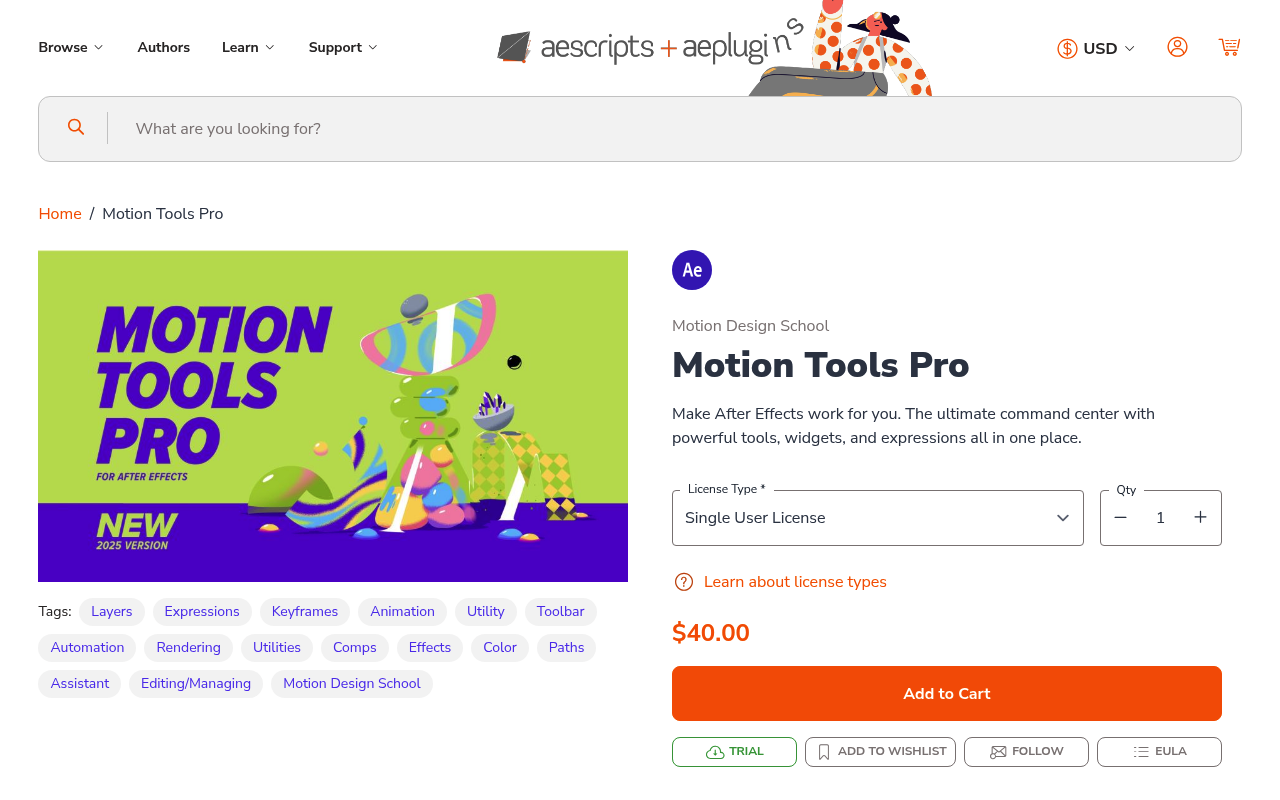
If you want one panel that consolidates the tasks you reach for constantly , easing presets, keyframe nudging, expression snippets, alignment controls , Motion Tools Pro is the closest thing to a motion designer’s dashboard that exists for After Effects. Rather than solving one specific problem, it solves the navigation problem: the interface gives you a configurable command center where common operations live in one dockable panel instead of being scattered across menus and keyboard shortcuts.
The easing presets are genuinely good. You get visually labeled curves you can apply in one click, and you can save custom curves so your house style is reproducible across any project. The widgets for nudging keyframe values numerically are particularly useful when you need precise control without going into the graph editor. The expressions library lets you store and insert commonly used expressions without opening a code editor.
The main limitation is that it takes time to configure properly. Out of the box, the panel is useful but generic. The real productivity gain comes after you’ve spent an hour or two setting it up to match your personal workflow. It also doesn’t replace dedicated keyframe management tools for complex sequencing tasks , it’s a generalist panel, not a specialist one.
Tested in After Effects 2024 on both macOS and Windows. No noticeable performance impact when docked.
Key features:
- One-click easing presets with custom curve saving
- Keyframe nudging and value adjustment widgets
- Dockable expressions library with insert shortcuts
- Alignment and distribution controls
- Configurable panel layout
Pros/Cons:
- Pros: Genuinely reduces the number of actions required for common tasks; highly configurable; actively maintained
- Cons: Requires upfront configuration to be useful; learning curve to discover all features; doesn’t replace specialist tools for deep keyframe work
Best for: Motion designers who want a single configurable panel to replace scattered native menus
Pricing: $40 as a one-time purchase. Upgrade pricing available for previous Classic users.
2. Spotlight FX
While most tools on this list automate specific technical operations inside After Effects, Spotlight FX takes a different approach to speeding up your motion design workflow: it eliminates the time you spend building common motion graphics from scratch. With 2,300+ MOGRT-based assets (transitions, lower thirds, overlays, kinetic text templates, and genre packs), it puts production-ready creative elements directly into your timeline, removing entire categories of manual work.
What makes it particularly relevant in a workflow discussion is the free tier. Every user gets access to all workflow scripts and tools at no cost, with no feature gatekeeping on the scripting side. The cloud-based delivery model means assets auto-update in the background, so you never re-download or re-import packs when new content drops. For designers running high-output workflows (YouTube channels, social content, event production), that kind of maintenance-free library access compounds into real weekly time savings.
The non-destructive MOGRT-based editing means you can customize an asset inside your project and know it will still update cleanly when the underlying template changes. It works across both After Effects and Premiere Pro, which is useful if your workflow spans both applications.
One honest note: Spotlight FX speeds up production by giving you pre-built creative elements, not by automating your After Effects operations. If you work exclusively in bespoke animation and never build lower thirds, transitions, or overlay-based compositions, the library approach won’t change your workflow. But for designers who build any volume of those elements, it removes hours that no scripting tool can address.
Key features:
- 2,300+ MOGRT-based assets: transitions, lower thirds, overlays, kinetic text, genre packs
- Cloud-based delivery: assets auto-update, no re-importing
- All workflow tools free for every user
- Non-destructive MOGRT editing
- Compatible with After Effects and Premiere Pro
Pros/Cons:
- Pros: Eliminates time spent building common motion graphics from scratch; cloud updates remove maintenance overhead; free workflow tools for all users; generous free tier to evaluate before paying
- Cons: Asset library approach, not a procedural automation tool; creative output depends on the library’s aesthetic range
Best for: Motion designers who regularly build transitions, lower thirds, overlays, or social content at volume and want production-ready assets on demand
Pricing: Free tier includes 39 templates and all workflow tools. Paid plans: $29/mo, $14/mo billed annually, or $299 lifetime one-time.
3. Flow
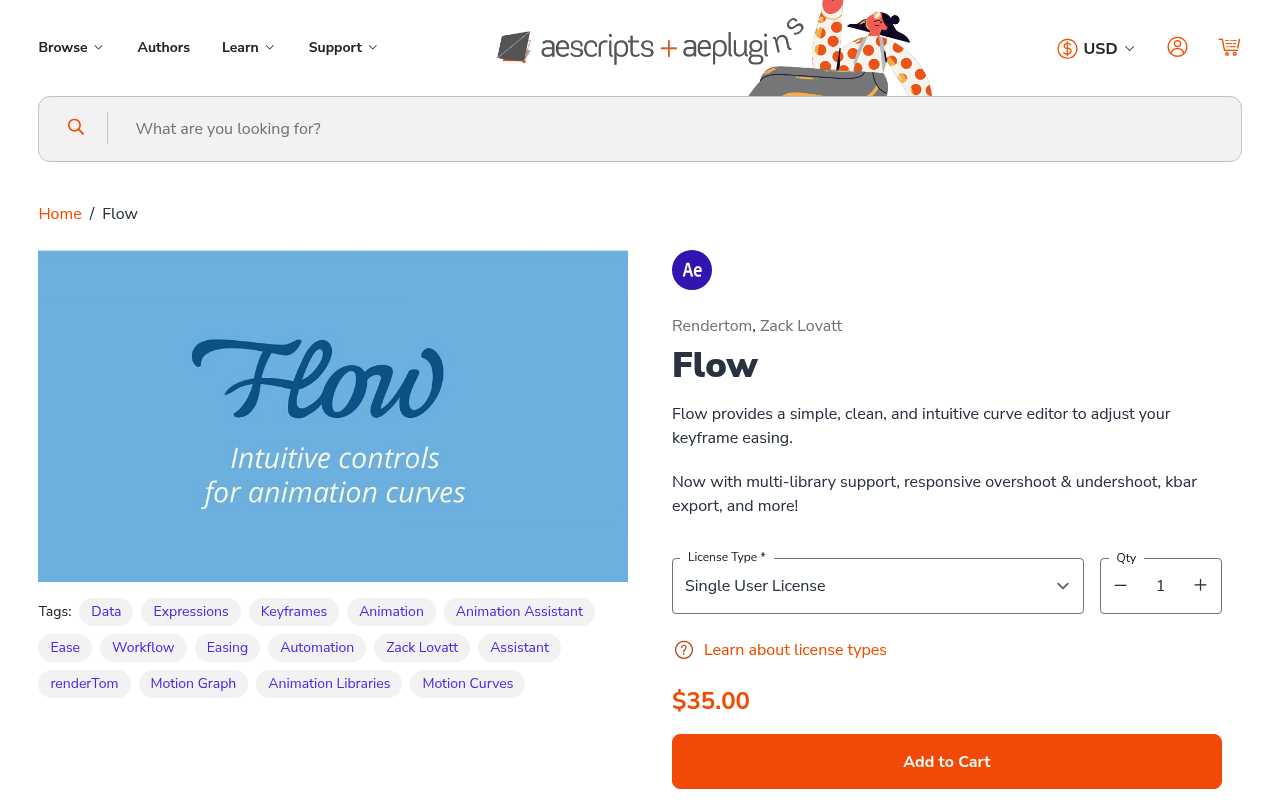
Most motion designers spend too much time in the graph editor doing the same easing adjustments over and over. Flow replaces that friction with a visual curve editor that lets you apply easing from a preset library, draw custom curves with bezier handles, and save your own presets , all from a compact dockable panel.
What makes it worth using is the visual feedback. You can see the curve shape before you apply it, which means you’re making intentional easing choices rather than approximating by feel in the native graph editor. The preset library covers the standard easing families (ease in, ease out, ease in-out, custom bounce, custom elastic) and the handles are responsive enough that drawing a custom curve takes seconds rather than minutes.
The pay-what-you-want pricing is generous for what you get. The free trial version has limited curve presets, which is enough to evaluate whether the panel fits your workflow. The full version unlocks the complete preset library and custom preset saving.
One honest limitation: Flow works on keyframe easing, so it requires existing keyframes. It doesn’t generate motion for you. If you’re working with expressions-driven animation, you’ll need a different approach. Also, the panel is After Effects only , no Premiere Pro support.
Compatible with After Effects CC 2018 and later. Minimal CPU overhead.
Key features:
- Visual curve editor with bezier handle control
- Preset library organized by easing family
- Custom preset saving
- Apply to selected keyframes or all keyframes on selected properties
- Dockable panel with keyboard shortcut support
Pros/Cons:
- Pros: Genuinely faster than the native graph editor for standard easing; visual curve preview; fair pricing
- Cons: Keyframe-dependent, won’t help with expression-driven motion; no Premiere Pro support
Best for: Motion designers who want fast, visually guided easing without opening the graph editor
Pricing: Pay-what-you-want, suggested price $35. Free trial with limited preset access.
4. KBar3
The single most impactful change you can make to your After Effects workflow is reducing the number of mouse clicks required to reach the tools you use constantly. KBar3 lets you build custom toolbars with buttons that run scripts, apply effects, execute menu commands, or launch expressions , all triggered by clicking an icon or hitting a keyboard shortcut.
The workflow problem it solves is real: After Effects doesn’t have a consistent way to surface your most-used operations. KBar fills that gap. You can create a toolbar with buttons for creating nulls, applying your most-used effects, running cleanup scripts, switching workspaces, or anything else that currently requires navigating menus. Icons are fully customizable, and toolbars are shareable as files, which is useful for studios that want consistent button sets across their team.
The setup takes time. Building a genuinely useful KBar requires thinking carefully about which operations you reach for most often, then finding or writing the scripts to execute them. But that investment pays off quickly. Once configured, the toolbar feels like a natural extension of After Effects rather than a third-party addition.
KBar3 works in After Effects CC 2018 and later. The pay-what-you-want model makes it accessible regardless of budget.
Key features:
- Build custom button toolbars with any operation
- Supports scripts, menu commands, effects, and expressions
- Custom icons with built-in icon library
- Keyboard shortcut assignment per button
- Shareable toolbar files for team consistency
Pros/Cons:
- Pros: Potentially the highest ROI workflow plugin available; completely flexible; toolbar files are portable
- Cons: The value is proportional to setup time invested; requires knowing which scripts to attach; no built-in automation library
Best for: Any motion designer willing to spend 2-3 hours setting it up in exchange for ongoing daily time savings
Pricing: Pay-what-you-want, suggested price $39.99 for a single-user license.
5. Keystone 3
Keyframe management in After Effects gets awkward fast when you’re working with complex sequences , selecting specific keyframes across multiple layers, aligning them, staggering them, distributing them evenly in time. The native tools exist but require precision clicking and multiple operations. Keystone 3 turns those multi-step processes into single-panel actions.
The core use case is keyframe alignment and distribution. You can select a set of keyframes and align them to the playhead, to each other, or to specific time offsets , operations that would otherwise require manually dragging or using the time remapping calculator. The staggering controls let you offset keyframes across layers with a specified delay, which is the manual operation most motion designers do repeatedly when building sequenced animations.
It also handles layer manipulation alongside keyframes: reordering, flipping in time, and nudging in-points. These feel like features that should exist natively in After Effects and don’t, which is exactly the kind of gap a good workflow plugin should fill.
The $59 price point is appropriate for a specialist tool. This isn’t a general-purpose panel , it does keyframe work specifically, and it does it well. If sequencing animations and managing keyframe timing is a significant part of your workflow, the purchase pays for itself quickly.
Compatible with After Effects CC 2019 and later.
Key features:
- Align keyframes to playhead, to each other, or by offset
- Stagger and distribute keyframes across layers with custom delay
- Layer ordering and in-point nudging
- Keyframe flipping and mirroring
- Works on selected keyframes or entire layers
Pros/Cons:
- Pros: Handles the most tedious parts of keyframe work quickly; stagger control is particularly strong
- Cons: Specialist tool , less useful if you don’t do a lot of sequencing work; $59 is on the higher end for workflow scripts
Best for: Motion designers building sequenced animations or managing complex keyframe timing across multiple layers
Pricing: $59 one-time purchase. Upgrade pricing available for previous version owners.
6. Shifter 3
Staircase animations , where multiple elements animate in sequence with a consistent offset , are one of the most common patterns in motion design. Building them manually means selecting each layer, shifting its in-point, adjusting its keyframes, and repeating for every element. Shifter 3 automates exactly this: it staggers clips and keyframes across selected layers with custom easing, turning a 20-step manual process into a few clicks.
The offset controls are more granular than what you’d expect. You can specify the delay between layers in frames or seconds, apply the stagger in forward or reverse order, and choose whether to shift the keyframes, the layer in-points, or both. The easing options mean you don’t just get a mechanical linear stagger , you can have the offset timing itself follow an ease curve, which produces more organic cascading animations.
It works in both After Effects and Premiere Pro, which is useful if your workflow spans both applications. The perpetual license at $34.99 is reasonable for a tool you’ll use regularly.
The limitation worth noting is that Shifter 3 is focused specifically on temporal staggering. It doesn’t handle spatial distribution, so if you need to arrange layers both in time and in space, you’ll still need a separate alignment tool for the spatial piece.
Key features:
- Stagger layer in-points or keyframes by custom delay
- Forward and reverse order options
- Easing curves applied to the offset timing itself
- Works in both After Effects and Premiere Pro
- Preserves original keyframe easing
Pros/Cons:
- Pros: One of the fastest ways to build cascade animations; the easing-on-offset feature produces better results than a simple linear stagger
- Cons: Temporal tool only, no spatial distribution; only one active installation per license
Best for: Animating lists, grids, icon sets, or any multi-element design where elements should enter in sequence
Pricing: $34.99 for a perpetual license.
7. Reach Pro
One of the quieter inefficiencies in After Effects is navigating to effects, scripts, and menu items you use infrequently enough that you can’t remember exactly where they live. Reach Pro adds a search bar and command launcher to After Effects that lets you type a few characters and execute any effect, script, preset, expression, or menu command from a single text field , similar to how Spotlight works on macOS or Alfred for power users.
For experienced motion designers, the value is in the long tail: the effects you know exist but haven’t memorized the menu path for, the scripts you installed six months ago and can’t remember the name of, the alignment tools buried in extension panels. Reach Pro surfaces all of it through text search.
The utility panel also includes quick-access tools for alignment, rigging helpers, and preset management, making it more than a simple launcher. The search is fast enough to use in real time without interrupting your mental flow.
The pay-what-you-want pricing with a $69 suggested price reflects its depth. The free trial is functional enough to evaluate whether the launcher paradigm works for your workflow. If you find yourself frequently hunting through menus, this tool addresses that directly.
Key features:
- Text-based search launcher for effects, scripts, and menu commands
- Alignment tools with key-object targeting
- Rigging helpers and expression quick-access
- Preset management integration
- Keyboard shortcut to open the search field
Pros/Cons:
- Pros: Solves a genuine navigation problem; fast search; covers a wide range of command types
- Cons: Higher suggested price point; some overlap with KBar3 for users who already have a custom toolbar
Best for: Experienced designers who use a wide variety of effects and tools and want faster access without memorizing every menu location
Pricing: Pay-what-you-want, suggested price $69.
8. Quick Menu 3
Where KBar3 gives you a persistent toolbar, Quick Menu 3 takes a different approach: a radial or grid menu that appears wherever your cursor is when you press a keyboard shortcut, then disappears after you select an action. This context-sensitive approach keeps your workspace clean while still giving fast access to frequently used operations.
You can populate the menu with effects, scripts, presets, expressions, and menu commands , the same types of operations as KBar3 , but the contextual popup model is better suited for some workflows. If you prefer to keep your After Effects workspace uncluttered and find persistent toolbars distracting, Quick Menu’s disappearing panel approach may fit better.
The menu supports nesting, so you can organize related tools into submenus that appear on hover. This is useful if you want to group effects by category or separate animation tools from compositing tools without building multiple toolbars.
The pay-what-you-want pricing makes this an easy install to try. It’s compatible with After Effects CC 2018 and later, and the performance overhead is negligible since the panel only renders when you trigger it.
The practical limitation versus KBar3 is discoverability , a popup menu is harder to learn from than a visible toolbar, so new team members or less frequent users may find KBar3 easier to adopt.
Key features:
- Context-sensitive popup menu triggered by keyboard shortcut
- Supports effects, scripts, presets, expressions, and menu commands
- Nested submenu support for organized grouping
- Customizable grid or radial layout
- Keeps workspace free of persistent panels
Pros/Cons:
- Pros: Clean workspace approach; fast to trigger; nesting allows good organization
- Cons: Less discoverable than a visible toolbar; requires memorizing which menu group contains which tool
Best for: Motion designers who prefer a clean workspace and want keyboard-triggered tool access rather than a persistent panel
Pricing: Pay-what-you-want, suggested price $30.
9. Automation Blocks for After Effects
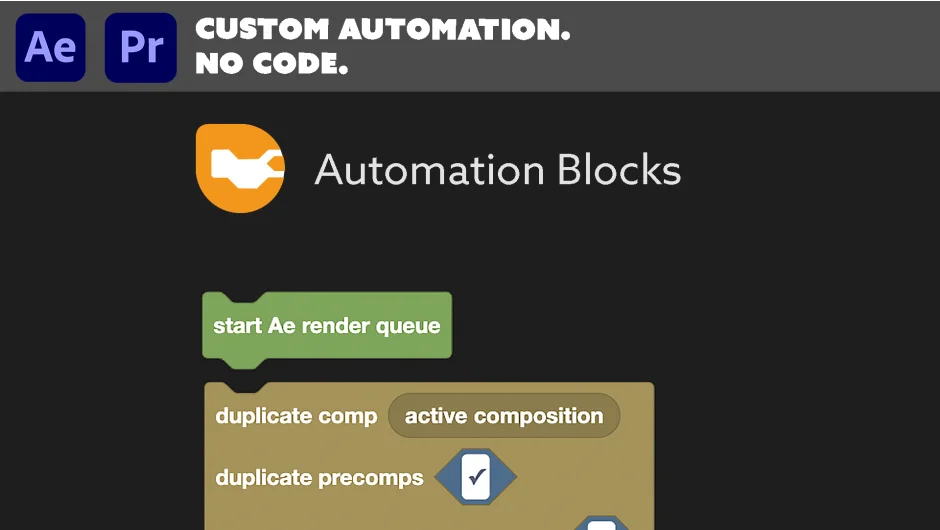
Most After Effects automation requires writing ExtendScript, which puts it out of reach for designers who don’t code. Automation Blocks changes this with a visual block-based system where you connect logical blocks to build automation sequences , similar to how Scratch or Zapier work , without writing a line of code.
The practical applications are broad: batch rename layers using a pattern, apply the same effect with the same settings to 50 comps, export all markers as a CSV, process a folder of footage files with consistent output settings. These are tasks that would previously require either a custom script or a tedious manual process. Automation Blocks handles them through a visual interface where you snap together condition, action, and data blocks.
The included block library is substantial enough to cover most common batch operations. For users who do eventually want to write code, the blocks can be combined with custom JavaScript blocks for more complex logic.
The pay-what-you-want pricing means there’s no barrier to trying it. The main investment is time spent learning the block system, which has a moderate learning curve , understanding how data flows between blocks takes some experimentation. For designers who regularly face repetitive multi-step tasks, that investment is well spent.
Key features:
- Visual block-based automation without coding
- 50+ built-in blocks for common operations
- Batch processing across comps, layers, and footage
- Custom JavaScript blocks for advanced users
- Shareable automation files
Pros/Cons:
- Pros: Genuinely makes automation accessible to non-coders; broad operation coverage; active development
- Cons: Learning curve to understand block logic; complex workflows can become unwieldy; slower than a purpose-written script for very specific tasks
Best for: Designers who face repetitive batch operations regularly and don’t want to write scripts to solve them
Pricing: Pay-what-you-want model.
10. Move Anchor Point 4
Anchor point positioning is one of the most tedious low-level tasks in After Effects. The native workflow , double-clicking into the layer, manually dragging the anchor point, exiting the layer , interrupts your flow constantly, especially when you’re positioning anchor points on multiple layers. Move Anchor Point 4 replaces all of that with a nine-point grid UI: click where you want the anchor point, and it moves there instantly without touching your layer’s position in the comp.
The nine-point grid handles the most common cases (corners, edges, center) with one click. For less common positions, you can also set exact pixel offsets or snap to specific reference points. The batch mode processes multiple selected layers simultaneously, which is useful when you need consistent anchor positioning across a set of elements.
This is one of the few workflow tools where every motion designer, regardless of specialization, will find immediate daily use. Anchor point management comes up in every project. The pay-what-you-want pricing with a $9.99 suggested minimum makes it an obvious install.
Compatible with After Effects CC 2017 and later. The batch processing on large layer counts (50+) can take a second or two, but single-layer operation is instant.
Key features:
- Nine-point grid for instant anchor positioning
- Precise pixel offset controls
- Batch mode for multiple selected layers
- Preserves layer position in comp when moving anchor
- Works on all layer types
Pros/Cons:
- Pros: Eliminates one of the most frequent low-level frustrations in AE; batch support; minimal learning curve
- Cons: Batch processing slows on very large layer counts; the trial version limits functionality
Best for: Every motion designer , anchor point positioning comes up in every project regardless of workflow
Pricing: Pay-what-you-want, suggested price $9.99.
11. STRUCTURA
Project organization is easy to ignore until you’re three weeks into a project, collaborating with another designer, or returning to an old file. Disorganized projects compound into real time losses: hunting for footage, deciphering unlabeled layer stacks, dealing with comp hierarchies that grew organically rather than intentionally. STRUCTURA automates the organizational work that most designers either skip or do manually.
It analyzes your project and sorts layers and project items into a professional hierarchy based on type, purpose, and naming conventions. The result is a project that reads like it was organized from the start rather than cleaned up at the end. For studios with multiple people working in the same project, having a consistent organizational structure that can be enforced automatically is particularly valuable.
The preset system lets you define and save your own organizational rules, so you can enforce your studio’s naming and folder conventions consistently across projects. This is the kind of tool that’s most valuable at the start of a project (to establish structure) or during handoff (to clean up before delivering to a client or another designer).
At $29.99, it’s priced reasonably for a utility that addresses a real organizational burden. The trial version lets you test it on a real project before committing.
Key features:
- Automatic project hierarchy organization by layer and item type
- Custom organizational preset saving
- Enforces consistent naming and folder conventions
- Works on the full project or selected comps
- Floating server licenses available for team use
Pros/Cons:
- Pros: Turns organizational hygiene from a manual chore into a one-click operation; preset system supports studio-wide consistency
- Cons: Works best when combined with consistent naming habits from the start; automatic organization may need review on highly custom projects
Best for: Studios or freelancers who collaborate, deliver project files to clients, or need to revisit projects months later
Pricing: $29.99 for a single-user license. Floating server licenses available.
How We Evaluated These Plugins
Every plugin on this list was evaluated against the same set of criteria relevant to workflow tools specifically.
Compatibility and stability were the first filter. Plugins that haven’t been updated for After Effects 2023 or later, or that have known stability issues on current macOS and Windows builds, were excluded regardless of other merits.
Time-to-value mattered more than feature count. A workflow plugin needs to make you faster in real production conditions, not just in demo scenarios. We looked at how quickly each tool becomes second nature versus how long it takes to set up and configure.
Performance impact was noted for each tool. Panels that noticeably slow preview rendering or UI responsiveness are a net negative for workflow regardless of what they automate.
Price-to-value ratio was evaluated against the realistic frequency of use. A $60 tool used daily has a different value calculation than a $10 tool used twice a year.
Update history and developer responsiveness were considered as signals of long-term viability. Workflow tools become deeply embedded in how you work, so a tool that stops getting updates as After Effects evolves creates future problems.
What to Look for in After Effects Workflow Plugins
Before installing anything, it’s worth being clear about what workflow problem you’re actually trying to solve. The tools in this category fall into a few distinct types, and conflating them leads to installing overlapping tools that don’t integrate well.
Command launchers and toolbars (KBar3, Quick Menu 3, Reach Pro) solve the navigation problem: getting to tools faster. If your friction is in locating and triggering operations, start here. These tools have high setup costs but very high ongoing returns.
Keyframe and timing tools (Flow, Keystone 3, Shifter 3) solve animation precision problems. If you spend significant time in the graph editor or manually staggering layers, these address that directly. They tend to have lower setup costs because the interface is immediately obvious.
Anchor and alignment tools (Move Anchor Point 4) solve specific, high-frequency mechanical problems. These are usually the easiest purchases to justify because the ROI calculation is simple: how many times per day do you do this operation manually, and how many seconds does the plugin save each time?
Automation and batch tools (Automation Blocks) solve the repetition problem. If you find yourself doing the same multi-step process across multiple comps or projects, automation tools multiply your capacity. The investment is learning time rather than money.
Organization tools (STRUCTURA) solve the project hygiene problem. These matter most in collaborative or client-delivery contexts.
For compatibility, verify that any plugin supports your current After Effects version before purchasing. Most plugins support AE 2021 and later, but older tools may require earlier versions. If you work across macOS and Windows, confirm platform support for both. For team environments, check whether the license covers multiple installations or requires per-seat purchases. Tools like Motion Tools Pro and KBar3 are designed with shareable configurations that make team deployment practical.
Frequently Asked Questions
Which After Effects workflow plugin gives the fastest return on investment?
Move Anchor Point 4 has the fastest practical return for most motion designers because anchor point positioning is a high-frequency, low-value task that occurs in every project. At a suggested price of $9.99 and near-zero learning curve, the math works out quickly. After that, KBar3 or Quick Menu 3 offer larger cumulative gains once configured, but they require more upfront setup time.
Are these workflow plugins compatible with the latest After Effects version?
All ten plugins listed here are compatible with After Effects 2023 and 2024 as of this writing. Verify compatibility before purchasing if you’re on a version older than 2021, particularly for tools like Keystone 3 and Shifter 3, which require AE CC 2019 or later. Check the developer’s product page for exact compatibility notes since After Effects updates occasionally break plugin behavior.
Do workflow plugins slow down After Effects?
Most of the tools listed here are scripts or script-based panels, not rendering plugins, so they have minimal impact on render and preview performance. Tools like KBar3 and Quick Menu 3 are essentially UI extensions with no rendering footprint. Flow and Move Anchor Point 4 execute operations on existing properties. Automation Blocks can take several seconds for large batch operations, but that’s expected behavior rather than a bug.
Can I use multiple workflow plugins without conflicts?
Yes, in most cases. Script-based panels run independently in After Effects’ scripting environment and rarely conflict with each other. The main issue is workspace management , too many docked panels reduces your composition viewer space. The combination that works well for most designers is one launcher tool (KBar3 or Quick Menu 3), one easing tool (Flow), and one keyframe management tool (Keystone 3 or Shifter 3), then adding more based on specific needs.
What’s the difference between a script and a plugin in After Effects?
Plugins are compiled binaries that integrate directly into After Effects’ rendering engine , they appear in the Effects panel and affect how frames are processed. Scripts are JavaScript-based programs that control After Effects through its scripting API , they automate UI actions and modify project properties. Most workflow tools on this list are scripts or script-based panels. True plugins (like rendering effects) have more performance implications than scripts. Both require installation; scripts go in the Scripts or ScriptUI Panels folder depending on type.
Is there a free option that covers basic workflow improvements?
Yes. Quick Menu 3 is pay-what-you-want with a functional free tier. Move Anchor Point 4 has a pay-what-you-want model where you can evaluate core functionality before paying. Automation Blocks for After Effects is also pay-what-you-want. For easing specifically, Flow’s free trial covers enough of the curve library to evaluate whether it fits your workflow. The free After Effects plugins collection has additional zero-cost options.
How long does it take to set up KBar3 or Quick Menu 3 properly?
Expect to spend 1-3 hours building a genuinely useful toolbar from scratch. The most productive approach is to track which operations you reach for most frequently over a week, then build buttons for that specific list rather than trying to cover every possible operation. Sharing toolbar files with teammates reduces their setup time significantly since they can start from your configured file and adjust from there.
Are there workflow plugins specifically for managing large motion graphics projects?
Yes. STRUCTURA is the strongest option for project organization, automatically sorting comps and items into a consistent hierarchy. For layer management specifically, the project organization plugins collection covers additional tools for renaming, labeling, and sorting layers at scale. Automation Blocks is also useful for batch operations across large numbers of comps.
Conclusion
If you’re starting from zero plugins, install Move Anchor Point 4 first; it’s inexpensive, immediately useful, and solves a problem that exists in every single After Effects session. Add Flow next for easing, then KBar3 once you have a sense of which operations you’re reaching for constantly. For designers who do a lot of sequenced animation work, Keystone 3 or Shifter 3 belong in the stack early.
If your workflow involves building transitions, lower thirds, overlays, or social content at any volume, Spotlight FX is worth adding from day one. The free tier includes all workflow tools and 39 templates with no time limit, a zero-risk way to evaluate whether a cloud-based asset library fits your production process before committing to a paid plan.
For a broader look at tools that complement these workflow picks, the workflow and productivity plugins and easing and animation tools collections are worth reviewing next.