
What It Does
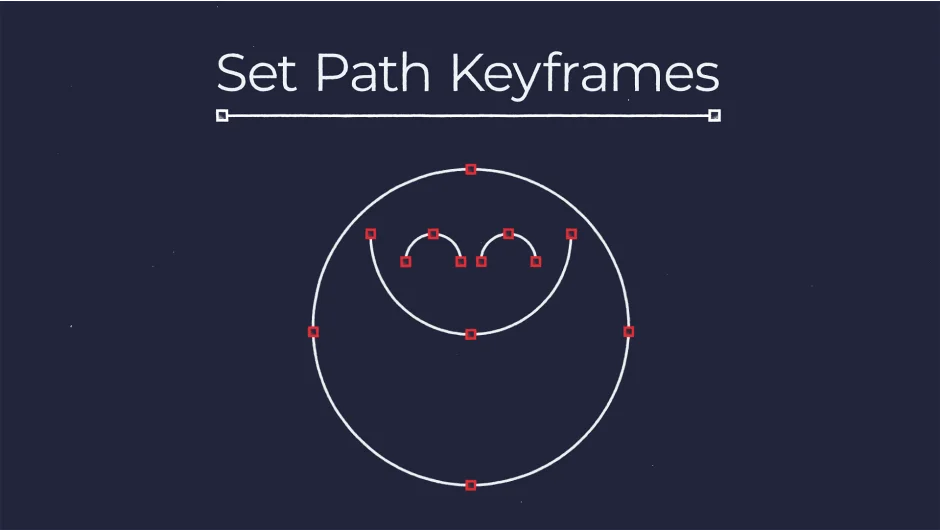
Set Path Keyframes adds or removes keyframes for all path properties on selected Shape Layers at the current time indicator. Instead of toggling through Shape properties in the timeline, set path keyframes across multiple layers with a single command.
Access it via Animation > Set Path Keyframes or assign a custom keyboard shortcut (for example, Ctrl+Alt+Q on Windows or ⌥+⌃+Q on Mac).
Key Features
Instant keyframe control. If selected Shape Layers are missing path keyframes at the current time, the plugin adds them. If all paths already have keyframes there, it removes them.
Auto-selects new keyframes. After adding keyframes (v1.1), press U to reveal all modified properties or SS to show only the selected path keyframes in your timeline.
Customizable shortcuts. Map the command to any keyboard combination that fits your workflow.
Multiple layer support. Works across all selected Shape Layers at once, handling missing or existing keyframes intelligently.
Who It’s For
Useful for motion designers working with Shape Layers and path animations. If you’re animating logo reveals, morphing shapes, or any path-based motion, this removes repetitive timeline clicks.
Pricing
Pay what you want model. Download for free or contribute any amount you choose. Individual users set their own price, while businesses and teams should pay the suggested amount for a valid license.


