
What It Does
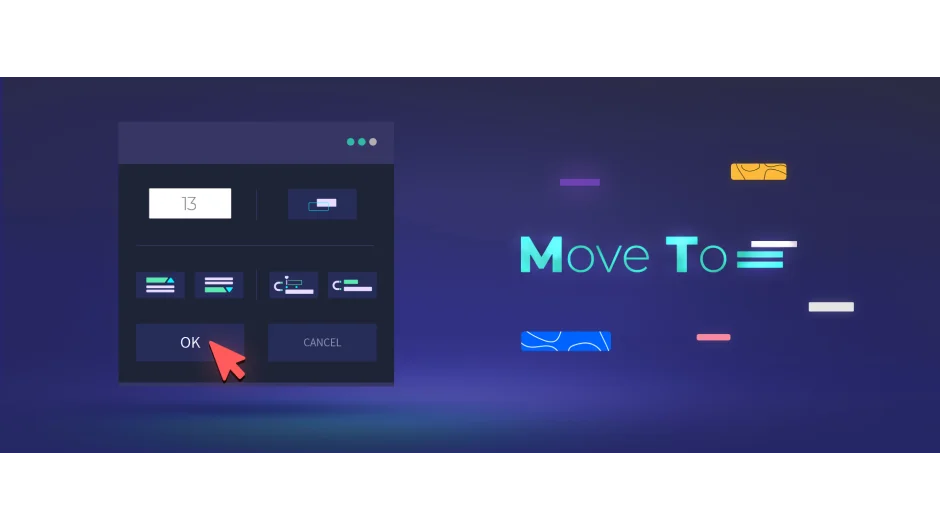
Move To is a utility script that adds keyboard shortcuts for common layer positioning tasks. Instead of dragging layers up and down the timeline, you get a shortcut-activated interface for moving selected layers above or below a target, duplicating and repositioning, or aligning layers to match each other.
Key Features
The script centers around a simple UI that appears when you hit the shortcut. From there, you can:
Move above or below a target layer. Select your layer, hit the shortcut, click the target, and the selected layer jumps into position.
Duplicate and move. Creates a copy of your selection and positions it in one action, useful when building out similar animation sequences.
Align to a target layer. Matches the in-point of your selected layer to match the target’s timing, keeping your animation synchronized without manually scrubbing through the timeline.
Move to first selected layer. When you have multiple layers selected, this positions them all relative to whichever layer you selected first.
Trim to keyframes. Adjusts layer in/out points to match the timing of its first and last keyframes, cutting out empty space before and after your animation.
Who It’s For
Useful for anyone working with complex layer stacks or doing a lot of animation blocking. The trim-to-keyframes feature is particularly helpful if you animate on separate layers and want to clean up the timeline afterward. It’s a small script that saves time on repetitive positioning tasks.
Pricing
Move To uses a pay-what-you-want model for individual users, with a suggested price of $8. Business and team licenses must pay the full suggested price.
