
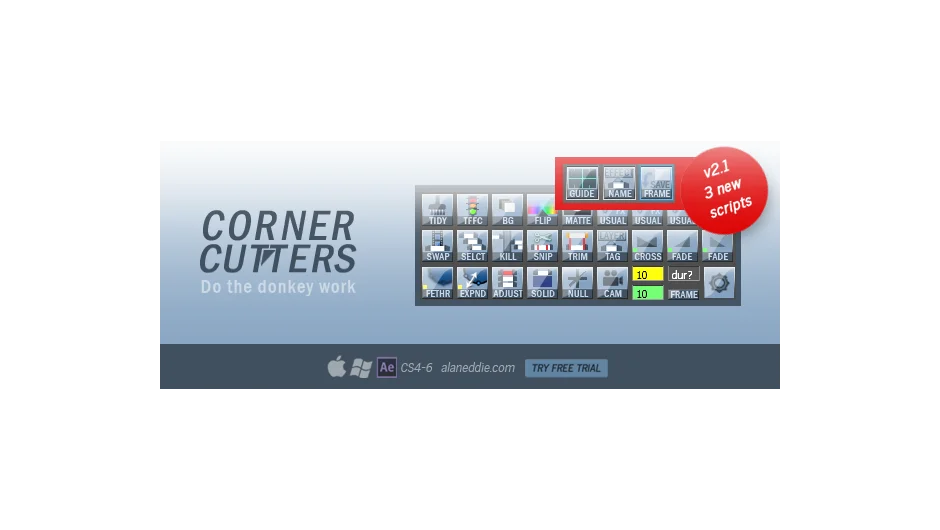
What It Does
Corner Cutters 2 is a discontinued bundle of 26 utility scripts for After Effects that automate common production tasks. The scripts live in a custom toolbar or run individually, letting you trim layers, organize projects, apply effects, create transitions, and manage masks without repetitive menu diving.
Key Features
TidyUp. Sorts the project panel into folders by type: compositions, audio, stills, footage, solids, missing files, vectors, and old folders. Useful for cleaning up messy projects or isolating missing footage. You can customize folder names, tidy specific types only, or exclude selected items from sorting.
TrafficLights. Tag layers with color-coded markers to track progress. Red for “not done,” orange for “in progress,” green for “done.” Clicking cycles through states. Re-click after a full cycle to delete all markers. Custom tag names can be saved.
KillDeadSpace. Removes accidental gaps between layers by ripple editing backwards. Option to preserve overlaps so transition layers don’t get nudged. Alt+Click processes in reverse layer order.
AutoTrimmer. Trims a selected layer to a set duration (defined in frames via work area), then advances the work area and centers the cursor. Streamlines quick edits when assembling clips of consistent length.
CrossBlend. Creates a cross-dissolve between two layers using the Blend effect. Set the transition duration in frames. Faster than keyframing opacity manually. Alt+Click uses alternate layer order.
FadeIn / FadeOut. Adds opacity keyframes to fade layers in or out, with correct in/out point trimming. Works with lights (intensity) and audio (levels). Alt+Click toggles fade to/from. Shift+Click sets fade duration.
UsualFX1/2/3. Adds an adjustment layer with your saved effects preset, or applies the preset to selected layers. Alt+Click to save a new preset as 1.ffx, 2.ffx, or 3.ffx. Tooltips can be customized to remind you what each preset does.
LayerTag. Copies the layer name to a marker. Shift+Click removes all markers. Alt+Click tags the layer with the names of applied effects, useful for tracking what adjustment layers are doing.
FeatherIncrement / ExpandIncrement. Adjusts mask feather or expansion by a set pixel value. Acts on all masks or just selected ones. Alt+Click applies negative increments.
QuickSnip. Three-click workflow: click 1 trims to in point, click 2 trims to out point and sets work area, click 3 trims the comp to the layer and prompts to render. Designed for selecting clips from long footage.
MatteFromWhite. Uses white content of a layer as a luma matte for itself. Click again to invert. Useful for quick compositing tests.
BgFlip. Toggles background color between white, mid-grey, and black. Helps check alpha compositing or preview renders against different backgrounds.
FlipColourize. Applies random hue shifts to a layer via slider. Useful for trying different color treatments on text or solids.
Reload. Reloads selected layers from the timeline without navigating to the project panel. Also attempts to heal links to missing footage if the file has been restored to its original path.
SwapFootage. Replaces the source footage for a selected layer. Affects all instances in the project, not just the selected comp.
SelectHereDown. Selects all layers below the current selection. Alt+Click selects upward instead. Useful for sliding large groups of layers.
SetCompTime. Enter a frame or timecode value to set composition duration. Toggle between frames and seconds.
Solid / AdjustmentLayer / Null / Cam. One-click layer creation. Solids include a hue/saturation effect for quick color tweaking.
LayoutGuide. Adds a mask-based guide layer showing center, quadrants, and center left/right. Complements grid and safe area overlays for design layout.
SaveFrame. Exports the current frame as a PNG, named with comp and frame number. Shift+Click sets a default output folder.
fxName. Renames adjustment layers based on applied effects. Makes it easier to see what each layer is doing without solo-ing.
Who It’s For
Motion designers and editors who spend time trimming layers, organizing projects, or applying repetitive effects. Especially useful for editors doing light compositing work in After Effects or animators managing large, messy projects.
Pricing
Corner Cutters 2 has been discontinued and is no longer available for purchase. Version 1 owners received a free upgrade to version 2 by logging in with their original purchase email.
